The board menu
A board is the container for everything you model, and the board menu at the very top of the left sidebar is where you create, switch, rename and delete them. You do not need an account to follow along: with the storage switch on Local Only, boards live in your own browser and nothing is sent anywhere.
1
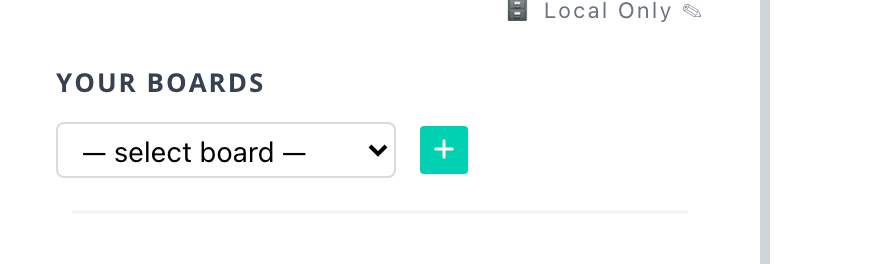
Click the + to create a board
The board controls sit at the top of the sidebar and stay there the whole time. On a fresh install the dropdown is empty and the green + is the only thing to press.
2
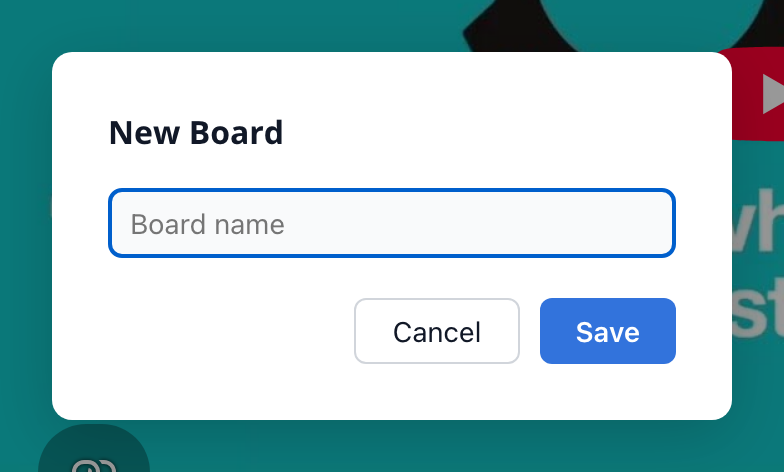
Give it a name and save
Name it after the process you are about to model rather than the project — Order Fulfillment tells you more later than Board 1.
3
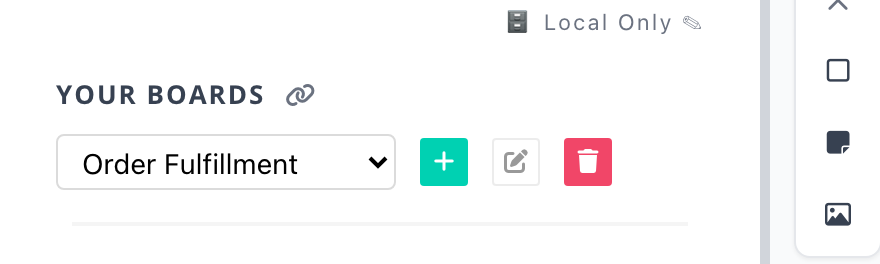
The full menu appears once a board exists
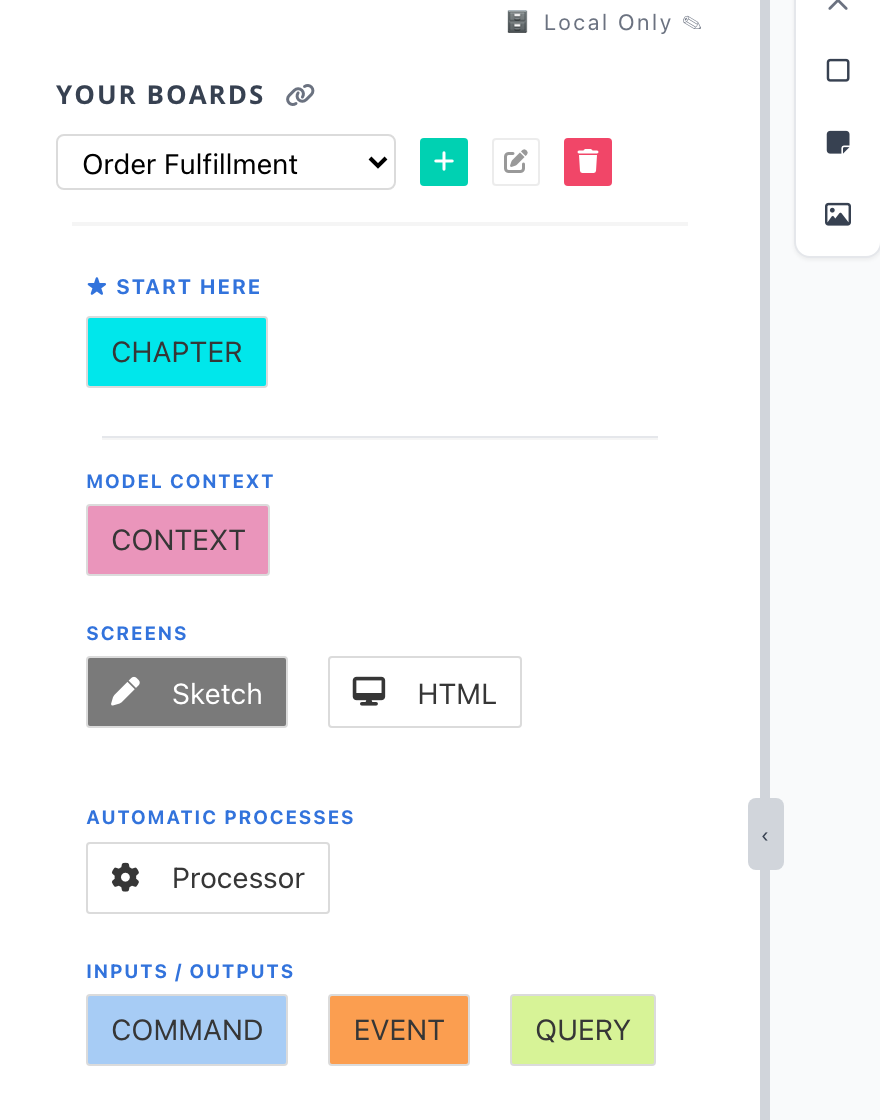
With a board selected you get the whole set: the dropdown switches between boards, and the three buttons beside it create, rename and delete. Deleting is immediate and local — there is no trash to recover from, so rename twice and delete once.
4
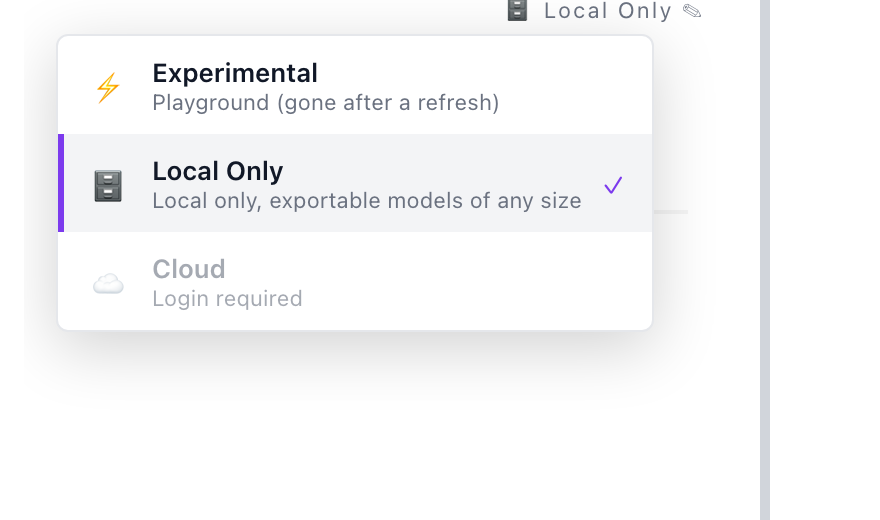
Know which storage backend you are on
The small label above the board menu is the storage backend — where boards are actually kept. Click it to switch. ⚡ Experimental keeps everything in memory: fast to try things in, but gone the moment you refresh. 🗄️ Local Only is the default for solo work — it uses your browser's own database, handles models of any size and never leaves the machine, so you are responsible for exporting anything you want to keep. ☁️ Cloud is the only one with real-time collaboration, and it needs a login; without an active licence cloud boards open read-only.
5
You land on an empty canvas
The sidebar below the board menu is the element palette. Notice that only one entry is marked ★ START HERE — that is deliberate, and it is the next tutorial.
What you have now
A board of your own, and the four controls that manage all of them.